Results - List View Tab
The List View tab displays detailed information about the service leads included in the search, such as the lead status and any proposals currently associated with the customer.

|
The List View tab can be accessed using one of the following methods:
|
 (List View) icon on the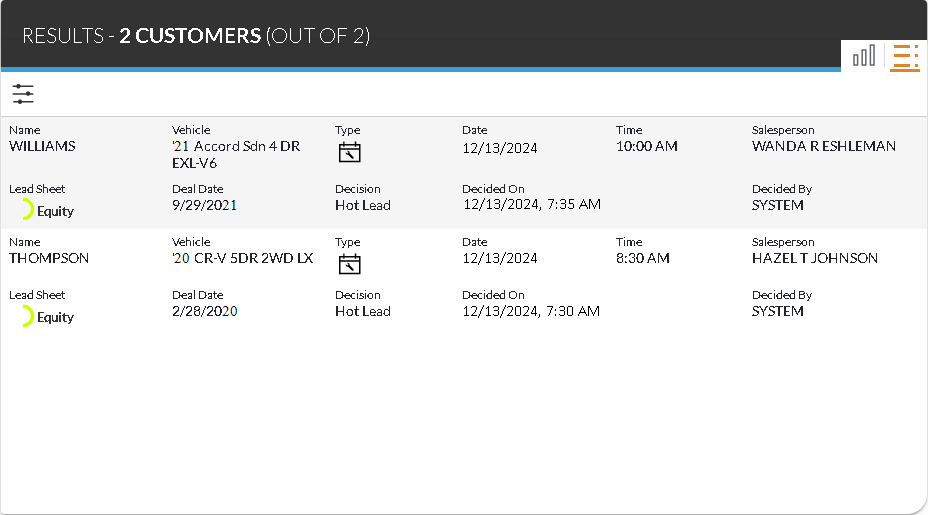
To view additional details about a service lead, click the row of the desired lead. The Lead Sheet panel and the Proposal Review panel display, where the lead can be viewed and printed.
The following items display in the List view of the Results panel.
Name: The last name of the customer displays.
Vehicle: The year, model, and trim of the customer's current vehicle display.
Type: An icon displays to indicate the type of service lead.
The following icons can display:
-
 (Appointment)
 -
 (Walk-In)
Date: The scheduled date for the service appointment displays.
Time: The scheduled time for the service appointment displays. If the transportation type of the appointment is Night Drop, the  (Night Drop) icon displays.
Salesperson: The name of the salesperson assigned to the customer displays.
Lead Sheet: The type of lead sheet suggested for the customer, such as Equity, displays. In addition, an icon displays to indicate an estimate of how likely the prospect is to purchase a vehicle.
The following icons can display:
-
 (Okay)
 -
 (Good)
 -
 (Great)
 -
 (Wow)
(Wow)
Deal Date: The date of the customer's most recent vehicle deal displays.
Decision: The lead decision, such as Hot Lead or Pending, displays.
Decided On: The date the lead decision was made displays.
Pre-Screen: An icon indicating the credit worthiness of the prospect displays.
The following icons can display:
-
 (Approved). The prospect was pre-approved for financing.
 -
 (No Hit). Credit information could not be found for the corresponding name and address.
 -
 (No Offer). The prospect was denied for financing.
 -
 (Not Applicable). A pre-screen request cannot be sent for various reasons, such as if the prospect is a business. Hover the mouse cursor over this icon to display a tooltip indicating the reason the request cannot be sent.
 -
 (Pending). The pre-screen request is still processing.
Note - Pre-screen results are only available if FOCUS or the Customer application
Decided By: The method used to determine the status for the service lead displays. If a user made a manual decision for the lead, the User ID of that user displays. If the lead decision was assigned automatically using dealer-defined criteria, SYSTEM displays. Criteria for assigning lead decisions automatically can be defined on the Overall Filters screen.
Note - This field is only available when the Sent option button is selected in the Search Criteria panel.
Reason: The reason the service lead was not sent to the Customer application and FOCUS displays.
The following entries can display:
- No Proposals: No vehicle proposals are available to be included on a lead.
- Overall Proposal Filter: Lead does not qualify to be sent based on the settings defined on the Overall Filters screen.
- Recent Contact: Lead was previously sent or the customer was contacted within the timeframe defined on the Proposal Generation Settings screen.
- Appt Arrived Early: Another lead was generated before the scheduled appointment.
- Exclude Body Shop: Lead generated from a body shop repair order is not sent based on settings defined on the Proposal Generation Settings screen.
- Make Ready: Repair order is a make ready repair order.
Note - This field is only available when the Not Sent option button is selected in the Search Criteria panel.
Click here for a list of products that may be mentioned in this help file.